Useful ways to supply artwork
Collect labelled uploads, offer supported transfer links or allow files to follow later.

ARTWORK AND PROOFS
Spend less time chasing artwork. Give customers the tools to supply or create files, show them what needs attention and carry the latest artwork and proof decision into production.
ARTWORK CHECKS
Use artwork checks to compare a selected file with the print job before accepting it for production.
In product setup, choose a cut shape and safe area under Artwork checks. Round stickers can show a circular guide, and compatible book covers can show spine folds and panel guides.
Use visual review for printed bleed, text placement and colour. For font embedding, overprint or PDF/X checks, use your specialist prepress process.
SEE THE DETAIL
WHAT THIS CHANGES
Collect labelled uploads, offer supported transfer links or allow files to follow later.
Offer product-sized PDF guides, the included online designer and eligible configured Canva routes.
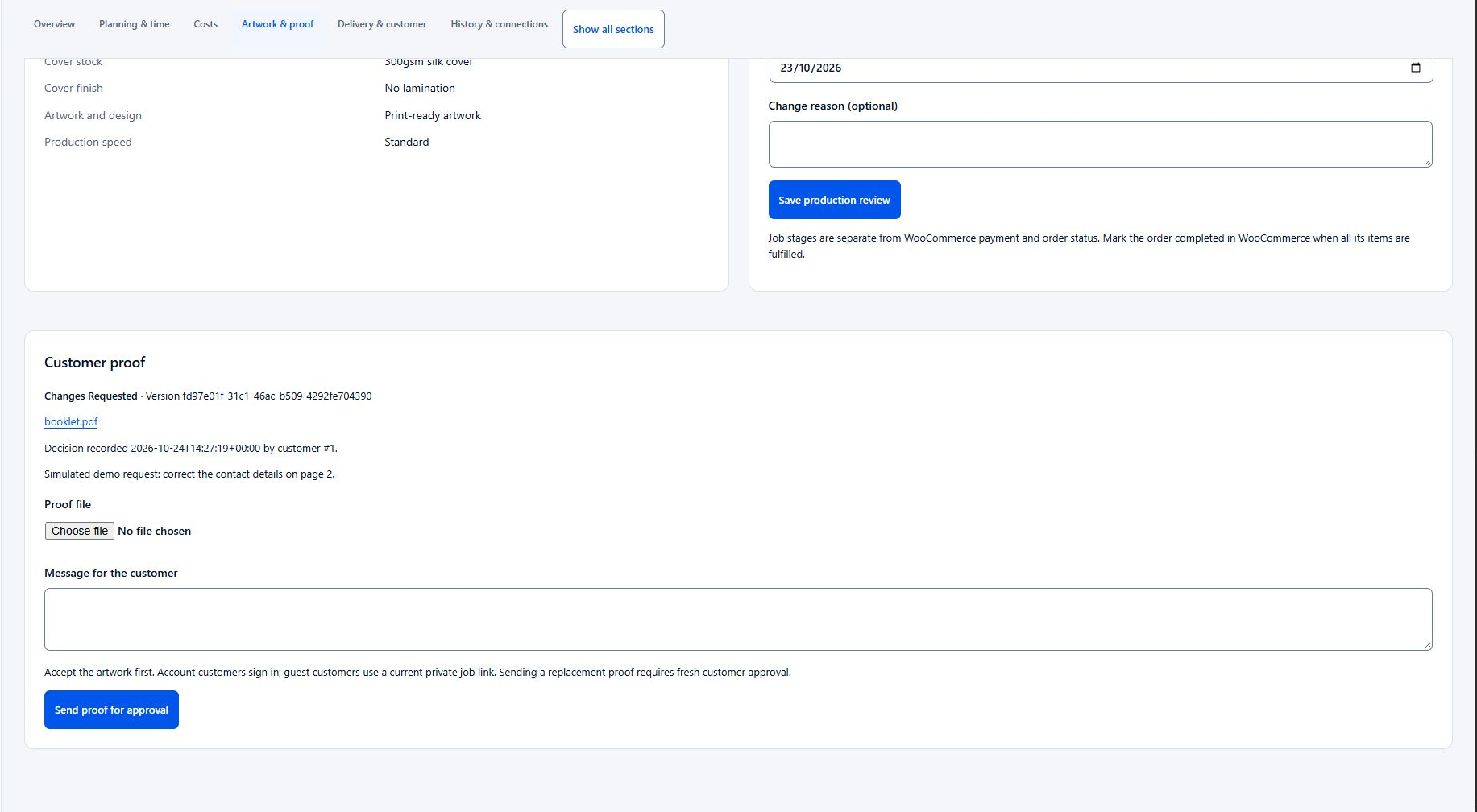
Record staff review and customer approval or changes against the relevant artwork and proof versions.
A WORKED SCENARIO
A customer replaces a business-card file after spotting an incorrect number. Your team can identify the new artwork, issue the appropriate proof and obtain a decision for that version before proceeding.
BOOKLETS AND PRODUCT GUIDES
Use a confirmed spine measurement or configured estimate to prepare a matching wraparound cover guide with bleed and fold references. Eligible book products can offer a separate inner-page guide.
BEFORE YOU ENABLE IT
Use the artwork checks to review finished size, page count and bleed before approving a proof. Staff can export a print-ready CMYK PDF/X-1a from a saved PressFlow design in Prepress handoff.
ARTWORK CONFIDENCE
Use Check selected artwork before saving a job or replacement file. PressFlow compares measurable details with the selected product and explains what was found, what is required and what to do next.
Compare the configured finished size, reliable PDF page boxes and expected page count, including supported cover and inner-page files.
Understand size and page findingsShow measurable bleed space and image pixels at the intended print size. Files that cannot be measured reliably are clearly passed for print-team review.
Read the artwork-check guidePrivate files, versions, staff checks and the customer’s decision on the exact proof stay with the job. A basic check does not replace that review.
Follow artwork and proof approval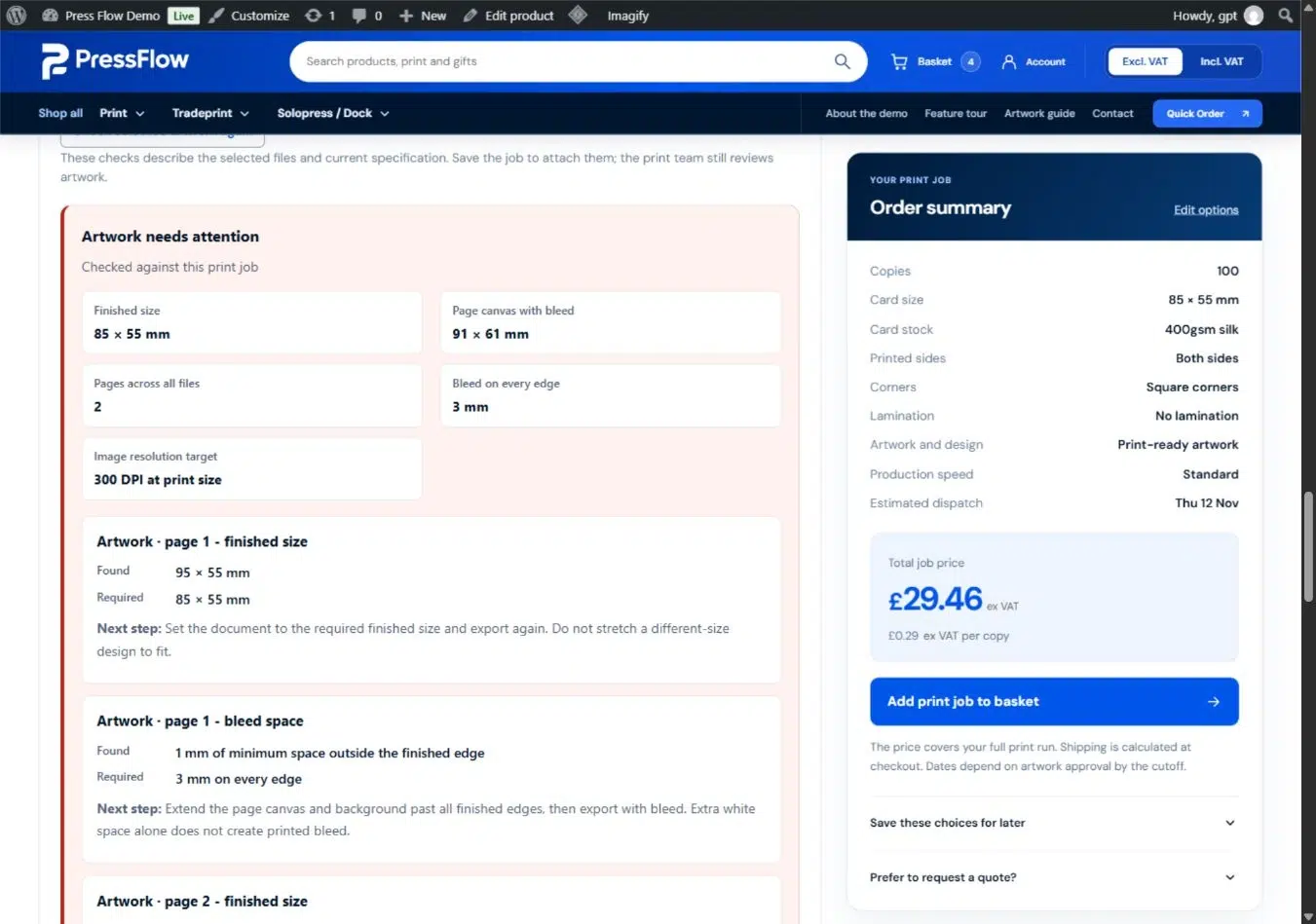
YOUR NEXT STEP
Try a representative job, review the complete licence, or talk to Fell & Harbour about a website built around your catalogue.